styled-components 는 CSS in JS 관련 리액트 라이브러리중 하나
시작하기 전에...
Tagged Template Literal
의 문법을 짚고 넘어가면 styled-components 를 잘 이해 할 수있다
Template Literal
- 일반 문자열 / 숫자열
const name = 'react';
const message = `hello ${name}`;

console.log(message);
// "hello react"
- 객체
const object = { a: 1 };
const text = `${object}`
console.log(text);
// "[object Object]"
- 함수
const fn = () => true
const msg = `${fn}`;
console.log(msg);
// "() => true"
Tagged Template Literal
Template Literal 을 사용하면서, 내부의 JS 값을 조회 하고 싶을 때
const red = '빨간색';
const blue = '파란색';
function favoriteColors(texts, ...values) {
  console.log(texts);
  console.log(values);
}
favoriteColors`제가 좋아하는 색은 ${red}과 ${blue}입니다.`
favoriyrColors(); 에 값을 넣는것.
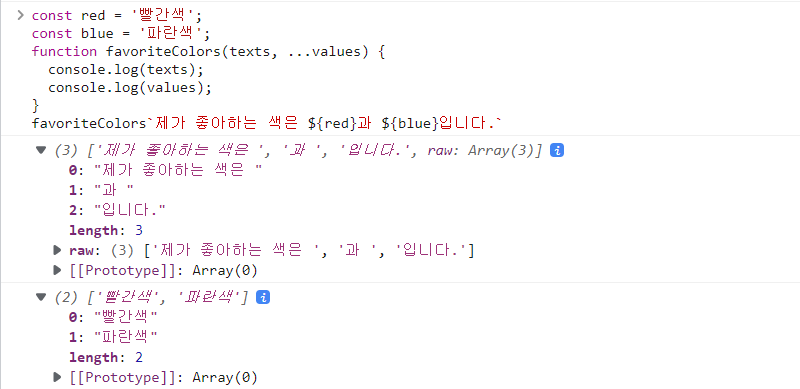
const red = '빨간색';
const blue = '파란색';
function favoriteColors(texts, ...values) {
   return texts.reduce((result, text, i) => `${result}${text}${values[i] ? `<b>${values[i]}</b>` : ''}`, '');
}
favoriteColors`제가 좋아하는 색은 ${red}과 ${blue}입니다.`
// 제가 좋아하는 색은 <b>빨간색</b>과 <b>파란색</b>입니다.
대충설명 : reduce 함수를 사용하여 값을 누적 시킴 => 결국 하나의 값 출력
function sample(texts, ...fns) {
  const mockProps = {
    title: '안녕하세요',
    body: '내용은 내용내용 입니다.'
  };
  return texts.reduce((result, text, i) => `${result}${text}${fns[i] ? fns[i](mockProps) : ''}`, '');
}
sample`
  제목: ${props => props.title}
  내용: ${props => props.body}
`
/*
"
  제목: 안녕하세요
  내용: 내용은 내용내용 입니다.
"
*/
이런식도 가능
styled-components 사용
$ npx create-react-app styling-with-styled-components
$ cd styling-with-styled-components
$ yarn add styled-components
App.js
import './App.css';
import styled from 'styled-components';

const Circle = styled.div`
  width: 5rem;
  height: 5rem;
  background: black;
  border-radius: 50%;
`;


function App() {
  return <Circle />;
}

export default App;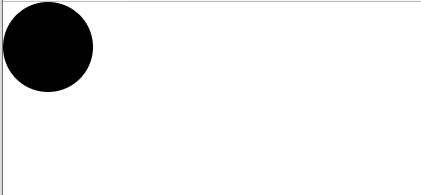
styled-components 르 사용하면 스타일을 입력한 동시에 해당 스타일을 가진 컴포넌트를 만들 수 있음
div를 하고 싶다면 styled.div // input > styled.input 이런식
검은색 원을 파랗게 만들어보자
import './App.css';
import styled from 'styled-components';

const Circle = styled.div`
  width: 5rem;
  height: 5rem;
  background: ${props => props.color || 'black'};
  border-radius: 50%;
`;


function App() {
  return <Circle color="blue"/>;
}

export default App;
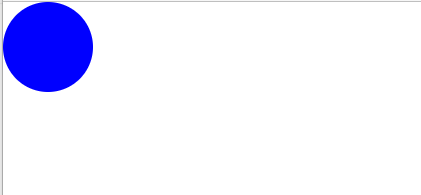
원을 크고 빨간색으로
import './App.css';
import styled, {css} from 'styled-components';

const Circle = styled.div`
  width: 5rem;
  height: 5rem;
  background: ${props => props.color || 'black'};
  border-radius: 50%;
  ${props =>
    props.huge &&
    css`
    width: 10rem;
    height: 10rem;
    `}
`;


function App() {
    return <Circle color="red" huge/>;
}

export default App;
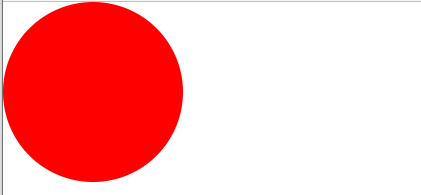
여러줄의 CSS 코드를 조건부로 보여주고 싶다면 CSS 를 사용
CSS 를 사용해야 그 스타일 내부에서도 다른 props 를 조회 할 수 있음
Button 만들기
Button.js
import React from "react";
import styled from "styled-components";

const StyledButton = styled.button`
    // 공통 스타일
    display: inline-flex;
    outline: none;
    border: none;
    border-radius: 4px;
    color: white;
    font-weight: bold;
    cursor: pointer;
    padding-left: 1rem;
    padding-right: 1rem;
    align-items: center;

    // 크기
    height: 2.25rem;
    font-size: 1rem;

    // 색상
    background: #228be6;
    &:hover {
        background: #339af0;
    }
    &:active {
        background: #1c7ed6;
    }

    // 간격
    & + & {
        margin-left: 1rem;
    }
`

function Button({children, ...rest}) {
    return<StyledButton {...rest}>{children}</StyledButton>;
}

export default Button;
App.js
import './App.css';
import styled, {css} from 'styled-components';
import Button from "../../styling-with-styled-components/src/components/Button";

const AppBlock = styled.div`
    width: 512px;
    margin: 0 auto;
    margin-top : 4rem;
    border: 1px solid black;
    padding: 1rem;
`;

function App() {

    return (
        <AppBlock>
            <Button>BUTTON</Button>
        </AppBlock>
    );
}

export default App;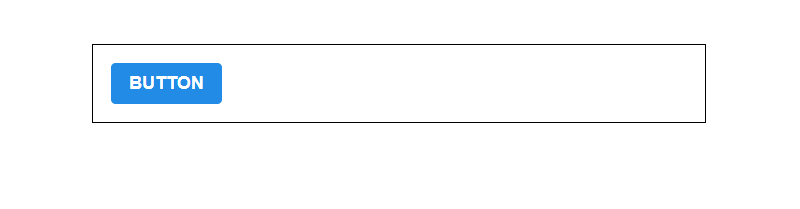
polished 의 스타일 관련 유틸 함수
Sass 처럼 lighten() , darken() 같은 함수를 쓸 수 있는 라이브러리
$ yarn add polishedimport React from "react";
import styled from "styled-components";
import {darken, lighten} from "polished";
const StyledButton = styled.button`
// 공통 스타일
display: inline-flex;
outline: none;
border: none;
border-radius: 4px;
color: white;
font-weight: bold;
cursor: pointer;
padding-left: 1rem;
padding-right: 1rem;
align-items: center;
// 크기
height: 2.25rem;
font-size: 1rem;
// 색상
background: #228be6;
&:hover {
background: ${lighten(0.1, '#228be6')};
}
&:active {
background: ${darken(0.1, `#228be6`)};
}
// 간격
& + & {
margin-left: 1rem;
}
`
function Button({children, ...rest}) {
return<StyledButton {...rest}>{children}</StyledButton>;
}
export default Button;ㅇ이런식으로 쓰면 된다
이제, 새로운 버튼을 만들건데 색상코드를 가진 변수를 Button.js 에서 선언하지말고
ThemeProvider 라는 기능을 사용, styled-components 로 만드는 모든 컴포넌트에서 조회하여 사용 할 수 있게 전역값 을 해설하자
app.js
import './App.css';
import styled, {css, ThemeProvider} from 'styled-components';
import Button from "../../styling-with-styled-components/src/components/Button";

// const Circle = styled.div`
//   width: 5rem;
//   height: 5rem;
//   background: ${props => props.color || 'black'};
//   border-radius: 50%;
//   ${props =>
//     props.huge &&
//     css`
//     width: 10rem;
//     height: 10rem;
//     `}
// `;

const AppBlock = styled.div`
    width: 512px;
    margin: 0 auto;
    margin-top : 4rem;
    border: 1px solid black;
    padding: 1rem;
`;

function App() {
    // return <Circle color="red" huge/>;
    return (
        <ThemeProvider>
            theme={{
            palette: {
                blue: '#228be6',
                gray: '#495057',
                pink: '#f06595'
            }
        }}
            <AppBlock>
                <Button>BUTTON</Button>
            </AppBlock>
        </ThemeProvider>
    );
}

export default App;
이렇게 theme 을 설정하면 ThemeProvicer 내부에 렌더링 된 styled-components 로 만든 컴포넌트에서 palette 를 조회하여 사용 할 수 있음
import React from "react";
import styled, {css} from "styled-components";
import {darken, lighten} from "polished";

const StyledButton = styled.button`
    // 공통 스타일
    display: inline-flex;
    outline: none;
    border: none;
    border-radius: 4px;
    color: white;
    font-weight: bold;
    cursor: pointer;
    padding-left: 1rem;
    padding-right: 1rem;
    align-items: center;

    // 크기
    height: 2.25rem;
    font-size: 1rem;

    // 색상
    ${props => {
        const selected = props.theme.palette.blue;
        return css`
            background: ${selected};
            &:hover {
                background: ${lighten(0.1, selected)};
            }
            &:active {
                background: ${darken(0.1, selected)};
            }
        `;
}}

    // 간격
    & + & {
        margin-left: 1rem;
    }
`

function Button({children, ...rest}) {
    return<StyledButton {...rest}>{children}</StyledButton>;
}

export default Button;
현재는 색상을 무조건 blue 로 설정.
이제는 Button 컴포넌트가 color props 를 통해서 받아오게 될 색상을 사용하도록 수정해보자
import React from "react";
import styled, {css} from "styled-components";
import {darken, lighten} from "polished";

const StyledButton = styled.button`
    // 공통 스타일
    display: inline-flex;
    outline: none;
    border: none;
    border-radius: 4px;
    color: white;
    font-weight: bold;
    cursor: pointer;
    padding-left: 1rem;
    padding-right: 1rem;
    align-items: center;

    // 크기
    height: 2.25rem;
    font-size: 1rem;

    // 색상
    ${props => {
        const selected = props.theme.palette[props.color];
        return css`
            background: ${selected};
            &:hover {
                background: ${lighten(0.1, selected)};
            }
            &:active {
                background: ${darken(0.1, selected)};
            }
        `;
}}

    // 간격
    & + & {
        margin-left: 1rem;
    }
`

function Button({children, ...rest}) {
    return<StyledButton {...rest}>{children}</StyledButton>;
}

Button.defaultProps = {
    color: 'blue'
};

export default Button;
기본 값은 blue
App.js 에서 나머지 색상의 버튼을 추가
import './App.css';
import styled, {css, ThemeProvider} from 'styled-components';
import Button from "../../styling-with-styled-components/src/components/Button";

const AppBlock = styled.div`
    width: 512px;
    margin: 0 auto;
    margin-top : 4rem;
    border: 1px solid black;
    padding: 1rem;
`;

function App() {

    return (
        <ThemeProvider
            theme={{
            palette: {
                blue: '#228be6',
                gray: '#495057',
                pink: '#f06595'
            }
        }}
        >
            <AppBlock>
                <Button>BUTTON</Button>
                <Button color="gray">BUTTON</Button>
                <Button color="pink">BUTTON</Button>
            </AppBlock>
        </ThemeProvider>
    );
}

export default App;
Button 컴포넌트 리팩토링
import React from "react";
import styled, {css} from "styled-components";
import {darken, lighten} from "polished";

const StyledButton = styled.button`
    // 공통 스타일
    display: inline-flex;
    outline: none;
    border: none;
    border-radius: 4px;
    color: white;
    font-weight: bold;
    cursor: pointer;
    padding-left: 1rem;
    padding-right: 1rem;
    align-items: center;

    // 크기
    height: 2.25rem;
    font-size: 1rem;

    // 색상
    ${({theme, color}) => {
        const selected = theme.palette[color];
        return css`
            background: ${selected};
            &:hover {
                background: ${lighten(0.1, selected)};
            }
            &:active {
                background: ${darken(0.1, selected)};
            }
        `;
}}

    // 간격
    & + & {
        margin-left: 1rem;
    }
`

function Button({children, color, ...rest}) {
    return<StyledButton color={color} {...rest}>{children}</StyledButton>;
}

Button.defaultProps = {
    color: 'blue'
};

export default Button;
비구조화 할당 문법을 사용, 가독성을 높였다
또한 로직을 따로 분리하여 사용할 수도 있음
import React from "react";
import styled, {css} from "styled-components";
import {darken, lighten} from "polished";

const colorStyles = css`
    ${({theme, color}) => {
    const selected = theme.palette[color];
    return css`
            background: ${selected};
            &:hover {
                background: ${lighten(0.1, selected)};
            }
            &:active {
                background: ${darken(0.1, selected)};
            }
        `;
    }}
`;

const StyledButton = styled.button`
    // 공통 스타일
    display: inline-flex;
    outline: none;
    border: none;
    border-radius: 4px;
    color: white;
    font-weight: bold;
    cursor: pointer;
    padding-left: 1rem;
    padding-right: 1rem;
    align-items: center;

    // 크기
    height: 2.25rem;
    font-size: 1rem;

    // 색상
    ${colorStyles}

    // 간격
    & + & {
        margin-left: 1rem;
    }
`

function Button({children, color, ...rest}) {
    return<StyledButton color={color} {...rest}>{children}</StyledButton>;
}

Button.defaultProps = {
    color: 'blue'
};

export default Button;
size props 를 설정 하여 크기를 변경해보자
Button.js
import React from "react";
import styled, {css} from "styled-components";
import {darken, lighten} from "polished";

const colorStyles = css`
    ${({theme, color}) => {
    const selected = theme.palette[color];
    return css`
            background: ${selected};
            &:hover {
                background: ${lighten(0.1, selected)};
            }
            &:active {
                background: ${darken(0.1, selected)};
            }
        `;
    }}
`;

const sizeStyles = css`
    ${props =>
        props.size === 'large' &&
        css`
            height: 3rem;
            font-size: 1.25rem;
    `}

    ${props =>
        props.size === 'medium' &&
        css`
           height: 2.25rem;
           font-size: 1rem;
    `}

    ${props =>
        props.size === 'small' &&
        css`
            height: 1.75rem;
            font-size: 0.875rem;
    `}
`;

const StyledButton = styled.button`
    // 공통 스타일
    display: inline-flex;
    outline: none;
    border: none;
    border-radius: 4px;
    color: white;
    font-weight: bold;
    cursor: pointer;
    padding-left: 1rem;
    padding-right: 1rem;
    align-items: center;

    // 크기
    ${sizeStyles}

    // 색상
    ${colorStyles}

    // 간격
    & + & {
        margin-left: 1rem;
    }
`

function Button({children, color, size, ...rest}) {
    return<StyledButton color={color} size={size} {...rest}>{children}</StyledButton>;
}

Button.defaultProps = {
    color: 'blue',
    size: 'medium'
};

export default Button;
App.js
import './App.css';
import styled, {ThemeProvider} from 'styled-components';
import Button from "../../styling-with-styled-components/src/components/Button";

const AppBlock = styled.div`
    width: 512px;
    margin: 0 auto;
    margin-top : 4rem;
    border: 1px solid black;
    padding: 1rem;
`;


const ButtonGroup = styled.div`
    & + & {
        margin-top: 1rem;
    }
`;

function App() {
    return (
        <ThemeProvider
            theme={{
                palette: {
                    blue: '#228be6',
                    gray: '#495057',
                    pink: '#f06595'
                }
            }}
        >
            <AppBlock>
                <ButtonGroup>
                    <Button size="large">BUTTON</Button>
                    <Button color="gray">BUTTON</Button>
                    <Button color="pink" size="small">BUTTON</Button>
                </ButtonGroup>
                <ButtonGroup>
                    <Button size="large">BUTTON</Button>
                    <Button color="gray">BUTTON</Button>
                    <Button color="pink" size="small">BUTTON</Button>
                </ButtonGroup>
                <ButtonGroup>
                    <Button size="large">BUTTON</Button>
                    <Button color="gray">BUTTON</Button>
                    <Button color="pink" size="small">BUTTON</Button>
                </ButtonGroup>
            </AppBlock>
        </ThemeProvider>
    );
}

export default App;
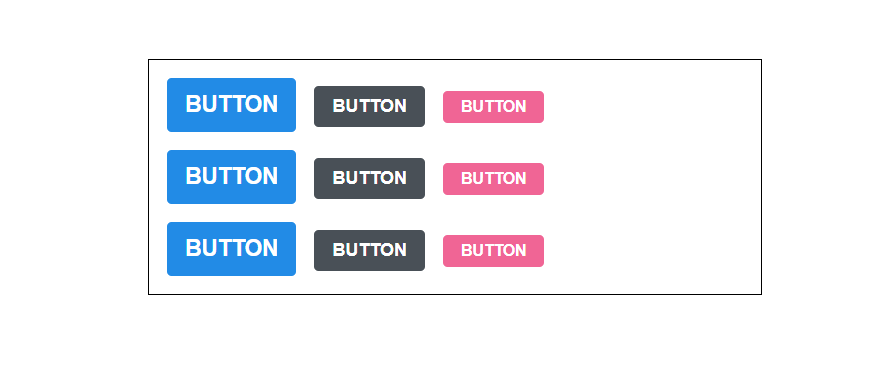
sizeStyles 의 중복되는 코드들을 리팩토링하자
import React from "react";
import styled, {css} from "styled-components";
import {darken, lighten} from "polished";

const colorStyles = css`
    ${({theme, color}) => {
    const selected = theme.palette[color];
    return css`
            background: ${selected};
            &:hover {
                background: ${lighten(0.1, selected)};
            }
            &:active {
                background: ${darken(0.1, selected)};
            }
        `;
}}
`;

const sizes = {
    large: {
        height: `3rem`,
        fontSize: `1.25rem`
    },
    medium: {
        height: `2.25rem`,
        fontSize: `1rem`
    },
    small: {
        height: `1.75rem`,
        fontSize: `0.875rem`
    }
};

const sizeStyles = css`
    ${({size}) => css`
        height: ${sizes[size].height};
        font-size: ${sizes[size].fontSize};
    `}
`;

const StyledButton = styled.button`
    // 공통 스타일
    display: inline-flex;
    outline: none;
    border: none;
    border-radius: 4px;
    color: white;
    font-weight: bold;
    cursor: pointer;
    padding-left: 1rem;
    padding-right: 1rem;
    align-items: center;

    // 크기
    ${sizeStyles}

    // 색상
    ${colorStyles}

    // 간격
    & + & {
        margin-left: 1rem;
    }
`

function Button({children, color, size, ...rest}) {
    return <StyledButton color={color} size={size} {...rest}>{children}</StyledButton>;
}

Button.defaultProps = {
    color: 'blue',
    size: 'medium'
};

export default Button;
이번에는 Button 컴포넌트에 outline props 를 설정, true ? 테두리만 있는 버튼 설정
Button.js // colorStyles 만 수정, props 도
import React from "react";
import styled, {css} from "styled-components";
import {darken, lighten} from "polished";

const colorStyles = css`
    ${({theme, color}) => {
    const selected = theme.palette[color];
    return css`
            background: ${selected};
            &:hover {
                background: ${lighten(0.1, selected)};
            }
            &:active {
                background: ${darken(0.1, selected)};
            }
            ${props =>
                props.outline &&
                css`
                    color: ${selected};
                    background: none;
                    border: 1px solid ${selected};
                    &:hover {
                        background: ${selected};
                        color: white;
                    }
                `}
        `;
}}
`;

const sizes = {
    large: {
        height: `3rem`,
        fontSize: `1.25rem`
    },
    medium: {
        height: `2.25rem`,
        fontSize: `1rem`
    },
    small: {
        height: `1.75rem`,
        fontSize: `0.875rem`
    }
};

const sizeStyles = css`
    ${({size}) => css`
        height: ${sizes[size].height};
        font-size: ${sizes[size].fontSize};
    `}
`;

const StyledButton = styled.button`
    // 공통 스타일
    display: inline-flex;
    outline: none;
    border: none;
    border-radius: 4px;
    color: white;
    font-weight: bold;
    cursor: pointer;
    padding-left: 1rem;
    padding-right: 1rem;
    align-items: center;

    // 크기
    ${sizeStyles}

    // 색상
    ${colorStyles}

    // 간격
    & + & {
        margin-left: 1rem;
    }
`

function Button({children, color, size, outline, ...rest}) {
    return <StyledButton color={color} size={size} outline={outline} {...rest}>{children}</StyledButton>;
}

Button.defaultProps = {
    color: 'blue',
    size: 'medium'
};

export default Button;
App.js
import './App.css';
import styled, {ThemeProvider} from 'styled-components';
import Button from "../../styling-with-styled-components/src/components/Button";

const AppBlock = styled.div`
    width: 512px;
    margin: 0 auto;
    margin-top : 4rem;
    border: 1px solid black;
    padding: 1rem;
`;


const ButtonGroup = styled.div`
    & + & {
        margin-top: 1rem;
    }
`;

function App() {
    return (
        <ThemeProvider
            theme={{
                palette: {
                    blue: '#228be6',
                    gray: '#495057',
                    pink: '#f06595'
                }
            }}
        >
            <AppBlock>
                <ButtonGroup>
                    <Button size="large">BUTTON</Button>
                    <Button color="gray">BUTTON</Button>
                    <Button color="pink" size="small">BUTTON</Button>
                </ButtonGroup>
                <ButtonGroup>
                    <Button size="large">BUTTON</Button>
                    <Button color="gray">BUTTON</Button>
                    <Button color="pink" size="small">BUTTON</Button>
                </ButtonGroup>
                <ButtonGroup>
                    <Button size="large">BUTTON</Button>
                    <Button color="gray">BUTTON</Button>
                    <Button color="pink" size="small">BUTTON</Button>
                </ButtonGroup>
                <ButtonGroup>
                    <Button size="large" outline>BUTTON</Button>
                    <Button color="gray" outline>BUTTON</Button>
                    <Button color="pink" size="small" outline>BUTTON</Button>
                </ButtonGroup>
            </AppBlock>
        </ThemeProvider>
    );
}

export default App;
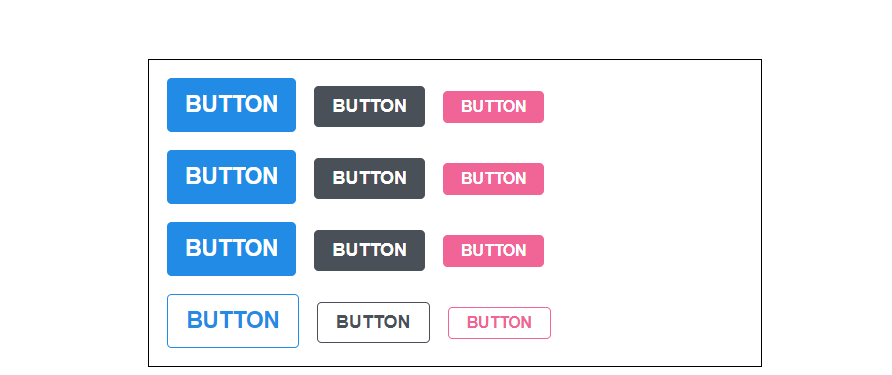
이제 fullWidth props 를 만들어서 크기를 100%로 만들어보자
Button.js
import React from "react";
import styled, {css} from "styled-components";
import {darken, lighten} from "polished";

const colorStyles = css`
    ${({theme, color}) => {
    const selected = theme.palette[color];
    return css`
            background: ${selected};
            &:hover {
                background: ${lighten(0.1, selected)};
            }
            &:active {
                background: ${darken(0.1, selected)};
            }
            ${props =>
                props.outline &&
                css`
                    color: ${selected};
                    background: none;
                    border: 1px solid ${selected};
                    &:hover {
                        background: ${selected};
                        color: white;
                    }
                `}
        `;
}}
`;

const sizes = {
    large: {
        height: `3rem`,
        fontSize: `1.25rem`
    },
    medium: {
        height: `2.25rem`,
        fontSize: `1rem`
    },
    small: {
        height: `1.75rem`,
        fontSize: `0.875rem`
    }
};

const sizeStyles = css`
    ${({size}) => css`
        height: ${sizes[size].height};
        font-size: ${sizes[size].fontSize};
    `}
`;

const fullWidthStyle = css`
    ${props =>
        props.fullWidth &&
        css`
            width: 100%;
            justify-content: center;
            & + & {
                margin-left: 0;
                margin-top: 1rem;
            }
        `}
`;

const StyledButton = styled.button`
    // 공통 스타일
    display: inline-flex;
    outline: none;
    border: none;
    border-radius: 4px;
    color: white;
    font-weight: bold;
    cursor: pointer;
    padding-left: 1rem;
    padding-right: 1rem;
    align-items: center;

    // 크기
    ${sizeStyles}

    // 색상
    ${colorStyles}

    // 간격
    & + & {
        margin-left: 1rem;
    }

    // width 100%
    ${fullWidthStyle}
`

function Button({children, color, size, outline, fullWidth, ...rest}) {
    return <StyledButton color={color} size={size} outline={outline} fullWidth={fullWidth} {...rest}>{children}</StyledButton>;
}

Button.defaultProps = {
    color: 'blue',
    size: 'medium'
};

export default Button;
App.js
import './App.css';
import styled, {ThemeProvider} from 'styled-components';
import Button from "../../styling-with-styled-components/src/components/Button";

const AppBlock = styled.div`
    width: 512px;
    margin: 0 auto;
    margin-top : 4rem;
    border: 1px solid black;
    padding: 1rem;
`;


const ButtonGroup = styled.div`
    & + & {
        margin-top: 1rem;
    }
`;

function App() {
    return (
        <ThemeProvider
            theme={{
                palette: {
                    blue: '#228be6',
                    gray: '#495057',
                    pink: '#f06595'
                }
            }}
        >
            <AppBlock>
                <ButtonGroup>
                    <Button size="large">BUTTON</Button>
                    <Button color="gray">BUTTON</Button>
                    <Button color="pink" size="small">BUTTON</Button>
                </ButtonGroup>
                <ButtonGroup>
                    <Button size="large">BUTTON</Button>
                    <Button color="gray">BUTTON</Button>
                    <Button color="pink" size="small">BUTTON</Button>
                </ButtonGroup>
                <ButtonGroup>
                    <Button size="large">BUTTON</Button>
                    <Button color="gray">BUTTON</Button>
                    <Button color="pink" size="small">BUTTON</Button>
                </ButtonGroup>
                <ButtonGroup>
                    <Button size="large" outline>BUTTON</Button>
                    <Button color="gray" outline>BUTTON</Button>
                    <Button color="pink" size="small" outline>BUTTON</Button>
                </ButtonGroup>
                <ButtonGroup>
                    <Button size="large" fullWidth>BUTTON</Button>
                    <Button color="gray" fullWidth>BUTTON</Button>
                    <Button color="pink" size="small" fullWidth>BUTTON</Button>
                </ButtonGroup>
            </AppBlock>
        </ThemeProvider>
    );
}

export default App;

Dialog 만들기
modal 처럼 뜨는거 하나 만들어 보자
import React from "react";
import styled from "styled-components";
import Button from "./Button";

const DarkBackground = styled.div`
    position: fixed;
    left: 0;
    top: 0;
    width: 100%;
    height: 100%;
    display: flex;
    align-items: center;
    justify-content: center;
    background: rgba(0,0,0,0.8);
`;

const DialogBlock = styled.div`
    width: 320px;
    height: 200px;
    padding:1.5rem;
    background: white;
    border-radius: 2px;
    // 아래의 h3,p 는 Nested CSS 문법
    h3 {
        margin: 0;
        font-size: 1.5rem;
    }
    p {
        font-size: 1.125rem;
    }
`;

const ButtonGroups = styled.div`
    align-items: center;
    margin-top: 4rem;
    display: flex;
    justify-content: flex-end;
`;

const ShortMarginButton = styled(Button)`
    & + & {
        margin-left: 0.5rem;
    }
`;


function Dialog({title, children, confirmText, cancelText}) {
    return (
        <DarkBackground>
            <DialogBlock>
                <h3>{title}</h3>
                <p>{children}</p>
                <ButtonGroups>
                    <ShortMarginButton color="gray">{cancelText}</ShortMarginButton>
                    <ShortMarginButton color="pink">{confirmText}</ShortMarginButton>
                </ButtonGroups>
            </DialogBlock>
        </DarkBackground>
    );
}

Dialog.defaultProps = {
    confirmText: '확인',
    cancelText: '취소'
}

export default Dialog;
가시성 상태관리
Dialog.js
import React from "react";
import styled from "styled-components";
import Button from "./Button";

const DarkBackground = styled.div`
    position: fixed;
    left: 0;
    top: 0;
    width: 100%;
    height: 100%;
    display: flex;
    align-items: center;
    justify-content: center;
    background: rgba(0,0,0,0.8);
`;

const DialogBlock = styled.div`
    width: 320px;
    height: 200px;
    padding:1.5rem;
    background: white;
    border-radius: 2px;
    // 아래의 h3,p 는 Nested CSS 문법
    h3 {
        margin: 0;
        font-size: 1.5rem;
    }
    p {
        font-size: 1.125rem;
    }
`;

const ButtonGroups = styled.div`
    align-items: center;
    margin-top: 4rem;
    display: flex;
    justify-content: flex-end;
`;

const ShortMarginButton = styled(Button)`
    & + & {
        margin-left: 0.5rem;
    }
`;


function Dialog({title, children, confirmText, cancelText, onConfirm, onCancel, visible}) {
    if (!visible) return null;
    return (
        <DarkBackground>
            <DialogBlock>
                <h3>{title}</h3>
                <p>{children}</p>
                <ButtonGroups>
                    <Button color="gray" onClick={onCancel}>{cancelText}</Button>
                    <Button color="pink" onClick={onConfirm}>{confirmText}</Button>
                </ButtonGroups>
            </DialogBlock>
        </DarkBackground>
    );
}

Dialog.defaultProps = {
    confirmText: '확인',
    cancelText: '취소'
}

export default Dialog;
App.js
import './App.css';
import styled, {ThemeProvider} from 'styled-components';
import Button from "../../styling-with-styled-components/src/components/Button";
import Dialog from "./components/Dialog";
import {useState} from "react";

const AppBlock = styled.div`
    width: 512px;
    margin: 0 auto;
    margin-top : 4rem;
    border: 1px solid black;
    padding: 1rem;
`;


const ButtonGroup = styled.div`
    & + & {
        margin-top: 1rem;
    }
`;

function App() {
    const [dialog, setDialog] = useState(false);
    const onClick = () => {
        console.log("???")
        setDialog(true);
    };
    const onConfirm = () => {
        console.log('확인');
        setDialog(false);
    };
    const onCancel = () => {
        console.log('취소');
        setDialog(false);
    };

    return (
        <ThemeProvider
            theme={{
                palette: {
                    blue: '#228be6',
                    gray: '#495057',
                    pink: '#f06595'
                }
            }}
        >
            <>
                <AppBlock>
                    <ButtonGroup>
                        <Button size="large">BUTTON</Button>
                        <Button color="gray">BUTTON</Button>
                        <Button color="pink" size="small">BUTTON</Button>
                    </ButtonGroup>
                    <ButtonGroup>
                        <Button size="large">BUTTON</Button>
                        <Button color="gray">BUTTON</Button>
                        <Button color="pink" size="small">BUTTON</Button>
                    </ButtonGroup>
                    <ButtonGroup>
                        <Button size="large">BUTTON</Button>
                        <Button color="gray">BUTTON</Button>
                        <Button color="pink" size="small">BUTTON</Button>
                    </ButtonGroup>
                    <ButtonGroup>
                        <Button size="large" outline>BUTTON</Button>
                        <Button color="gray" outline>BUTTON</Button>
                        <Button color="pink" size="small" outline>BUTTON</Button>
                    </ButtonGroup>
                    <ButtonGroup>
                        <Button size="large" fullWidth>BUTTON</Button>
                        <Button color="gray" fullWidth>BUTTON</Button>
                        <Button color="pink" size="small" fullWidth onClick={onClick}>삭제</Button>
                    </ButtonGroup>
                </AppBlock>
                <Dialog
                    title="정말로 삭제하시겠소?"
                    confirmText="그렇소"
                    cancelText="하지 않겠소"
                    onConfirm={onConfirm}
                    onCancel={onCancel}
                    visible={dialog}
                >
                    데이터를 정말로 삭제하시겠소?
                </Dialog>
            </>
        </ThemeProvider>
    );
}

export default App;
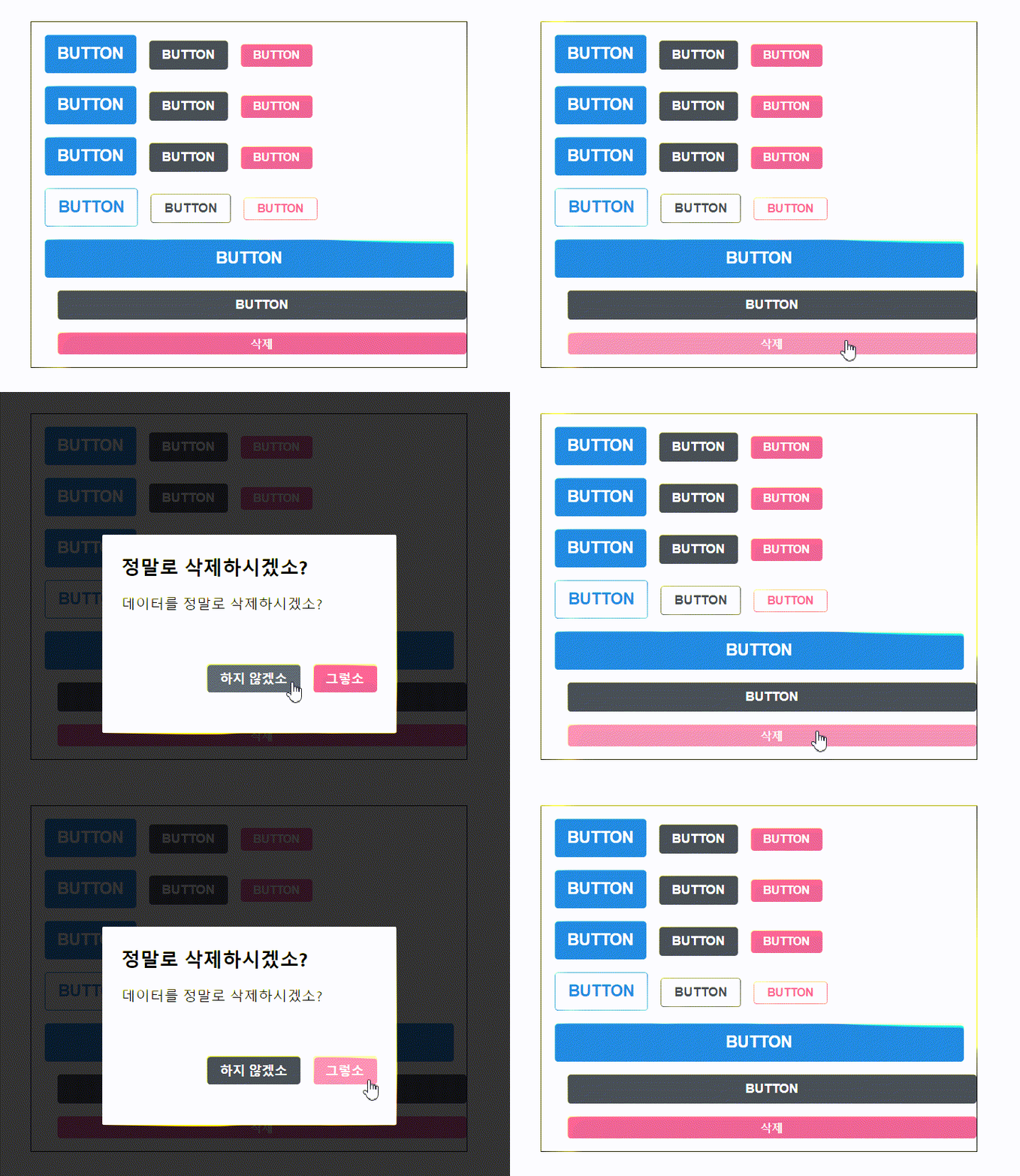
트랜지션 구현
Dialog 가 나타나거나 사라질 때 트랜지션 효과를 적용해보자
CSS Keyframe 을 사용, styled-components 에서 사용할 때에는 keyframes 라는 유틸을 사용
Dialog 가 나타날때 > DarkBackground 에서는 서서히 나타나는 fadeIn 효과
DialogBlock > 아래에서부터 올라오는 sildeUp 효과를 줘보자
fadeIn ,sildeUp 같은 애니메이션 네이밍은 마음대로 설정하면됌
일단은 나타날떄의 트렌지션효과
import React from "react";
import styled, {keyframes} from "styled-components";
import Button from "./Button";

const fadeIn = keyframes`
    from {
        opacity: 0
    }
    to {
        opacity: 1
    }
`;

const slideUp = keyframes`
    from {
        transform: translateY(200px);
    }
    to {
        transform: translateY(0px);
    }
`;

const DarkBackground = styled.div`
    position: fixed;
    left: 0;
    top: 0;
    width: 100%;
    height: 100%;
    display: flex;
    align-items: center;
    justify-content: center;
    background: rgba(0,0,0,0.8);

    // animation 추가
    animation-duration: 0.25s;
    animation-timing-function: ease-out;
    animation-fill-mode: forwards;
`;

const DialogBlock = styled.div`
    width: 320px;
    height: 200px;
    padding:1.5rem;
    background: white;
    border-radius: 2px;
    // 아래의 h3,p 는 Nested CSS 문법
    h3 {
        margin: 0;
        font-size: 1.5rem;
    }
    p {
        font-size: 1.125rem;
    }

    // animation 추가
    animation-duration: 0.25s;
    animation-timing-function: ease-out;
    animation-name: ${slideUp};
    animation-fill-mode: forwards;
`;

const ButtonGroups = styled.div`
    align-items: center;
    margin-top: 4rem;
    display: flex;
    justify-content: flex-end;
`;

const ShortMarginButton = styled(Button)`
    & + & {
        margin-left: 0.5rem;
    }
`;


function Dialog({title, children, confirmText, cancelText, onConfirm, onCancel, visible}) {
    if (!visible) return null;
    return (
        <DarkBackground>
            <DialogBlock>
                <h3>{title}</h3>
                <p>{children}</p>
                <ButtonGroups>
                    <Button color="gray" onClick={onCancel}>{cancelText}</Button>
                    <Button color="pink" onClick={onConfirm}>{confirmText}</Button>
                </ButtonGroups>
            </DialogBlock>
        </DarkBackground>
    );
}

Dialog.defaultProps = {
    confirmText: '확인',
    cancelText: '취소'
}

export default Dialog;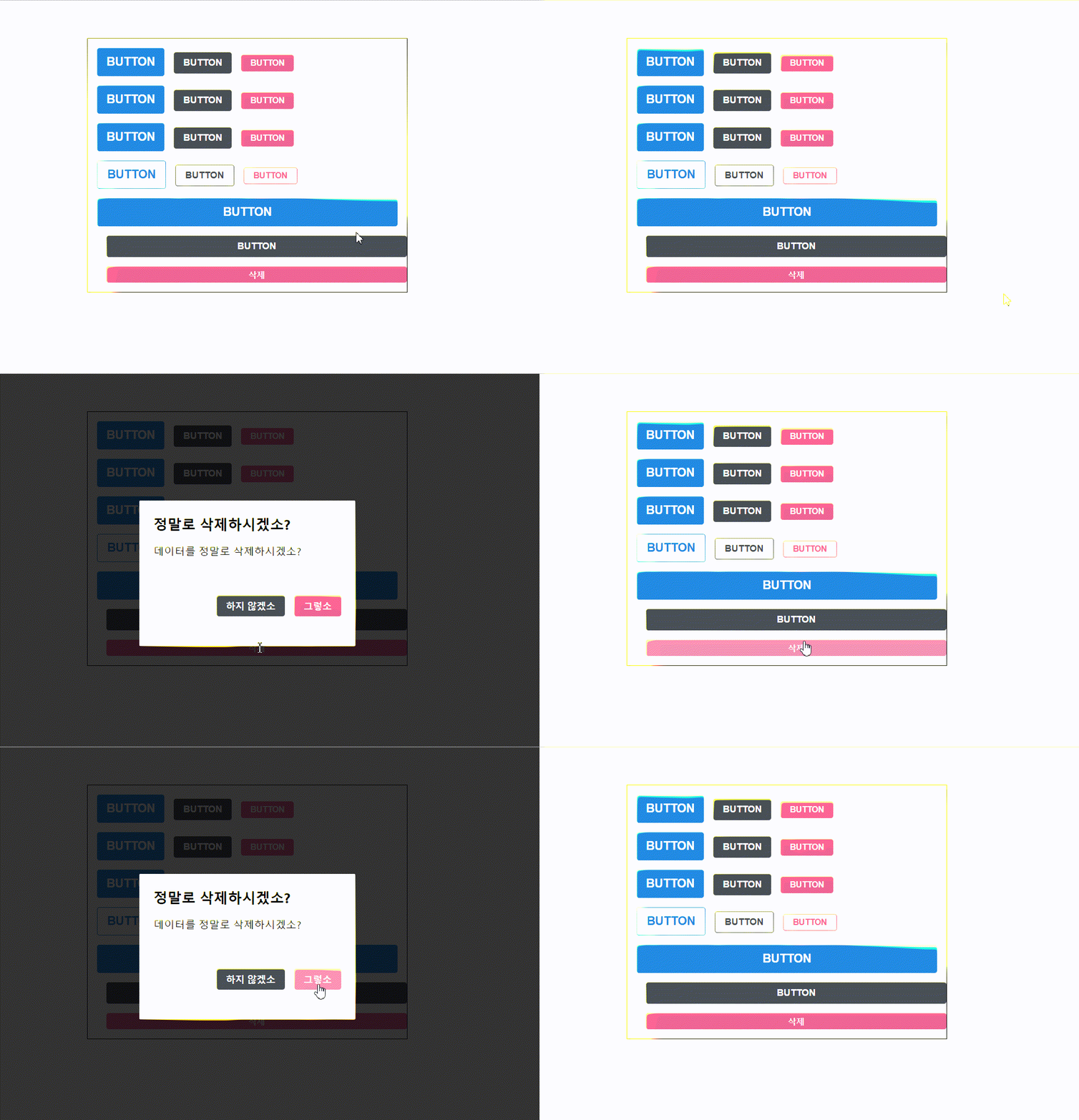
이제는 사라지는 트렌지션 효과를 줘보자
사라지는 효과를 구현하려면 Dialog 에서 두개의 로컨 살태를 관리해야함
1. 현재 트렌지션 효과를 보여주고 있는 중이라는 상태관리 animate
2. 실제 컴포넌트가 사라지는 시점을 지연시키기 위한 localVisible
1 지연 효과
import React, {useEffect, useState} from "react";
import styled, {keyframes} from "styled-components";
import Button from "./Button";

const fadeIn = keyframes`
    from {
        opacity: 0
    }
    to {
        opacity: 1
    }
`;

const slideUp = keyframes`
    from {
        transform: translateY(200px);
    }
    to {
        transform: translateY(0px);
    }
`;

const DarkBackground = styled.div`
    position: fixed;
    left: 0;
    top: 0;
    width: 100%;
    height: 100%;
    display: flex;
    align-items: center;
    justify-content: center;
    background: rgba(0,0,0,0.8);

    animation-duration: 0.25s;
    animation-timing-function: ease-out;
    animation-fill-mode: forwards;
`;

const DialogBlock = styled.div`
    width: 320px;
    height: 200px;
    padding:1.5rem;
    background: white;
    border-radius: 2px;
    // 아래의 h3,p 는 Nested CSS 문법
    h3 {
        margin: 0;
        font-size: 1.5rem;
    }
    p {
        font-size: 1.125rem;
    }

    animation-duration: 0.25s;
    animation-timing-function: ease-out;
    animation-name: ${slideUp};
    animation-fill-mode: forwards;
`;

const ButtonGroups = styled.div`
    align-items: center;
    margin-top: 4rem;
    display: flex;
    justify-content: flex-end;
`;

const ShortMarginButton = styled(Button)`
    & + & {
        margin-left: 0.5rem;
    }
`;


function Dialog({title, children, confirmText, cancelText, onConfirm, onCancel, visible}) {
    const [animate, setAnimate] = useState(false);
    const [localVisible, setLocalVisible] = useState(visible);

    // visible 값이 true -> false 가 되는 것을 감지
    useEffect(() => {
        if (localVisible && !visible) {
            setAnimate(true);
            setTimeout(() => setAnimate(false), 250);
        }
        setLocalVisible(visible);
    },[localVisible, visible]);

    if (!animate && !localVisible) return null;
    return (
        <DarkBackground>
            <DialogBlock>
                <h3>{title}</h3>
                <p>{children}</p>
                <ButtonGroups>
                    <Button color="gray" onClick={onCancel}>{cancelText}</Button>
                    <Button color="pink" onClick={onConfirm}>{confirmText}</Button>
                </ButtonGroups>
            </DialogBlock>
        </DarkBackground>
    );
}

Dialog.defaultProps = {
    confirmText: '확인',
    cancelText: '취소'
}

export default Dialog;
useEffact로 localVisible, animate 를 감지함

사라지는 효과를 적용
DarkBackground 와 DialogBlock 에 disappear 라는 props 를 주어서 사라지는 효과가 나타나도록하자
import React, {useEffect, useState} from "react";
import styled, {css, keyframes} from "styled-components";
import Button from "./Button";

const fadeIn = keyframes`
    from {
        opacity: 0
    }
    to {
        opacity: 1
    }
`;

const fadeOut = keyframes`
    from {
        opacity: 1
    }
    to {
        opacity: 0
    }
`;

const slideUp = keyframes`
    from {
        transform: translateY(200px);
    }
    to {
        transform: translateY(0px);
    }
`;

const slideDown = keyframes`
    from {
        transform: translateY(0px);
    }
    to {
        transform: translateY(200px);
    }
`;

const DarkBackground = styled.div`
    position: fixed;
    left: 0;
    top: 0;
    width: 100%;
    height: 100%;
    display: flex;
    align-items: center;
    justify-content: center;
    background: rgba(0,0,0,0.8);

    animation-duration: 0.25s;
    animation-timing-function: ease-out;
    animation-name: ${fadeIn};
    animation-fill-mode: forwards;

    ${props =>
        props.disappear &&
        css`
            animation-name: ${fadeOut};
        `}
`;

const DialogBlock = styled.div`
    width: 320px;
    height: 200px;
    padding:1.5rem;
    background: white;
    border-radius: 2px;
    // 아래의 h3,p 는 Nested CSS 문법
    h3 {
        margin: 0;
        font-size: 1.5rem;
    }
    p {
        font-size: 1.125rem;
    }

    animation-duration: 0.25s;
    animation-timing-function: ease-out;
    animation-name: ${slideUp};
    animation-fill-mode: forwards;

    ${props =>
        props.disappear &&
        css`
            animation-name: ${slideDown};
        `}
`;

const ButtonGroups = styled.div`
    align-items: center;
    margin-top: 4rem;
    display: flex;
    justify-content: flex-end;
`;

const ShortMarginButton = styled(Button)`
    & + & {
        margin-left: 0.5rem;
    }
`;


function Dialog({title, children, confirmText, cancelText, onConfirm, onCancel, visible}) {
    const [animate, setAnimate] = useState(false);
    const [localVisible, setLocalVisible] = useState(visible);

    // visible 값이 true -> false 가 되는 것을 감지
    useEffect(() => {
        if (localVisible && !visible) {
            setAnimate(true);
            setTimeout(() => setAnimate(false), 250);
        }
        setLocalVisible(visible);
    },[localVisible, visible]);

    if (!animate && !localVisible) return null;
    return (
        <DarkBackground disappear={!visible}>
            <DialogBlock disappear={!visible}>
                <h3>{title}</h3>
                <p>{children}</p>
                <ButtonGroups>
                    <Button color="gray" onClick={onCancel}>{cancelText}</Button>
                    <Button color="pink" onClick={onConfirm}>{confirmText}</Button>
                </ButtonGroups>
            </DialogBlock>
        </DarkBackground>
    );
}

Dialog.defaultProps = {
    confirmText: '확인',
    cancelText: '취소'
}

export default Dialog;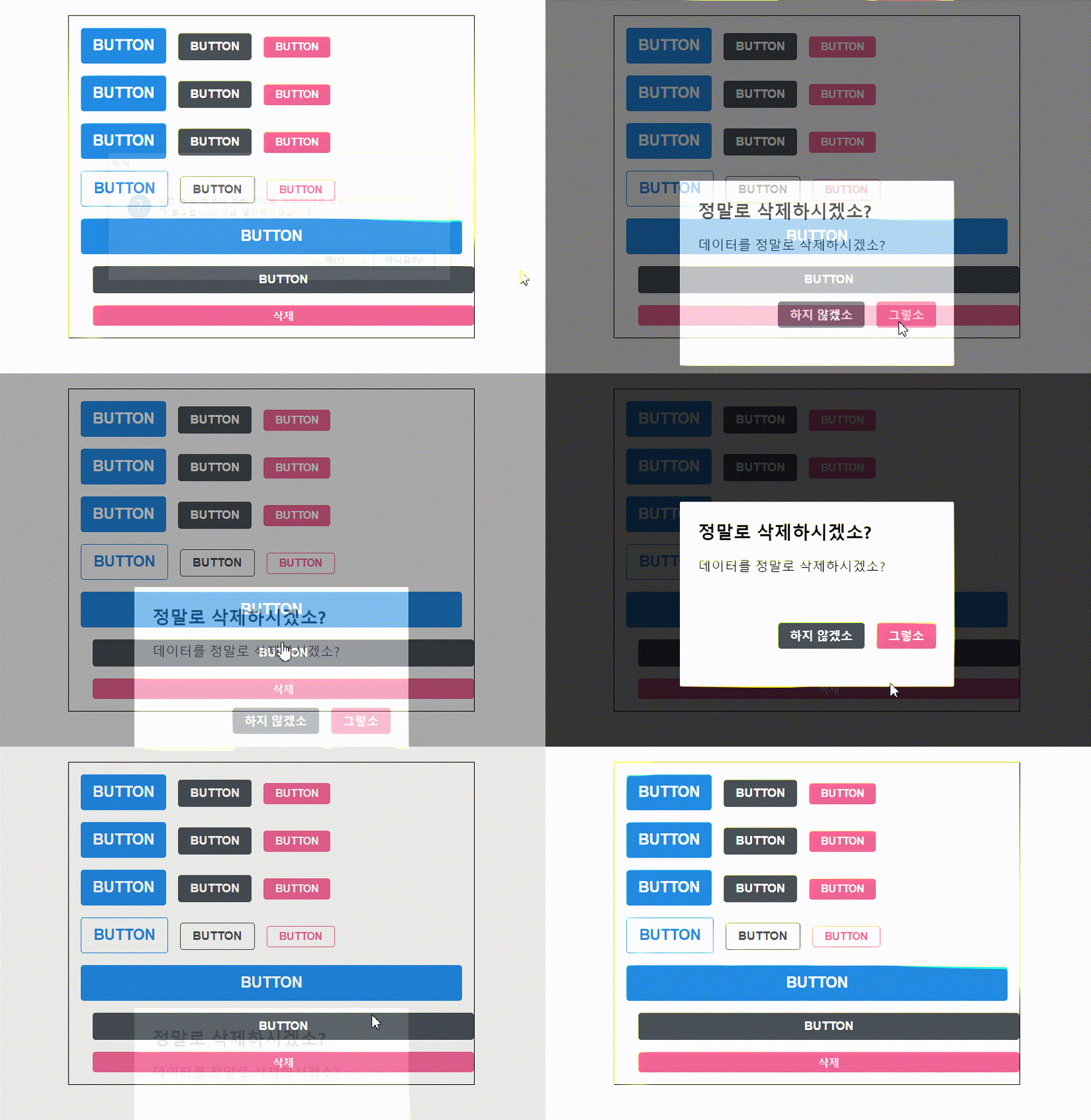
출처
'JS Library > React' 카테고리의 다른 글
| TodoList 기능 구현 (0) | 2022.08.03 |
|---|---|
| Context API 활용 상태 관리 (0) | 2022.08.03 |
| todolist 만들기 (0) | 2022.08.03 |
| react-icons link (0) | 2022.08.01 |
| CSS Module (0) | 2022.08.01 |
| Sass (0) | 2022.08.01 |